
1. Introduction:
This user guide will show you how to update and manage your new WordPress website. We’ll show you how to complete basic functions to maintain your site, such as adding, deleting, and updating pages, posts, inserting images, and more. Like learning anything new, the more you practice the better you get. We encourage you to play around in your new website. Try to add a new page (even if it’s just a test page that you delete in two minutes). The more familiar you become with your website, the more comfortable you will feel making updates.
Don’t worry — you aren’t going to delete your entire site! There are very few “goofs” we can’t fix, so if you accidentally delete something or if you do anything to your site that worries you, call us right away at 480-380-2201.
All of us at Think Pixa would like to sincerely thank you once again for your business, and we look forward to working with you to make your website a success!
Your WordPress admin login:
https://www.onecreativeview.com/wp-admin/
2. WordPress:
WordPress is what is called a “CMS” — Content Management System, and is the underlying software of your website.
With WordPress you can easily login and modify your page content when need be. At the same time, since WordPress is a blog platform, you can also create and manage your blog postings and comments — without having to learn a different system.
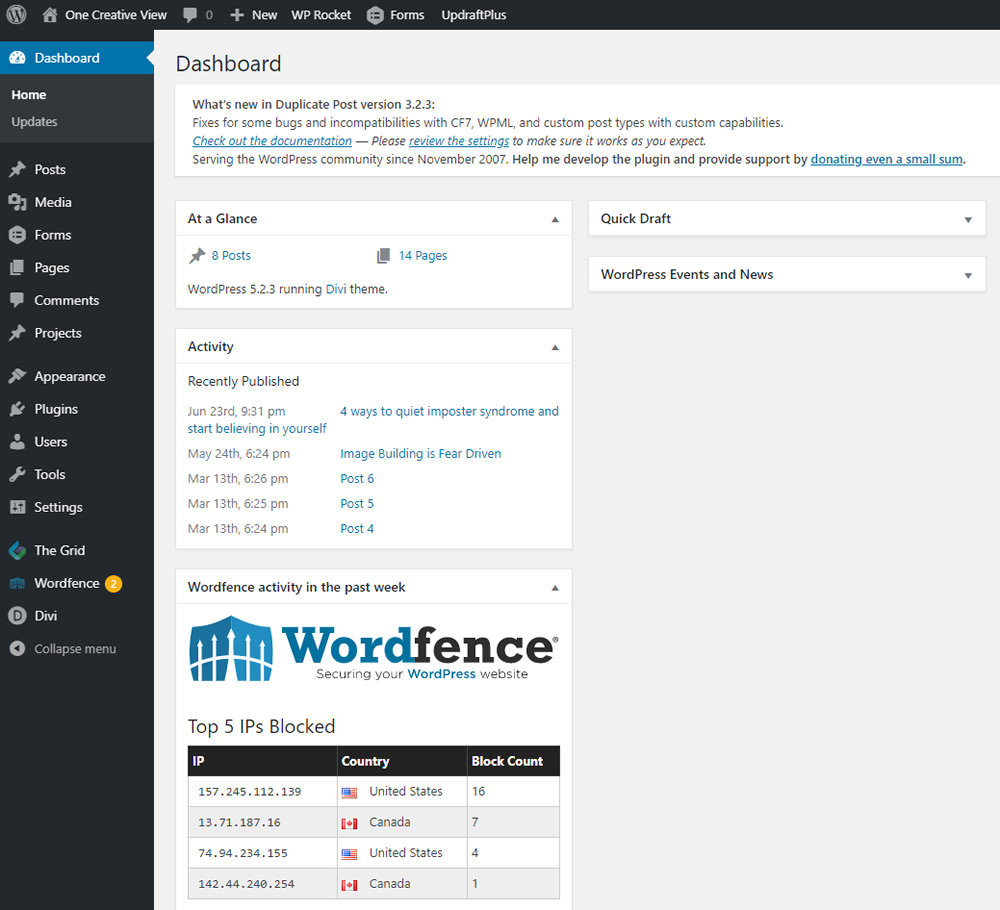
After you login to WordPress, you will be taken to the Dashboard, which is the administrative area of WordPress that allows you to access all functions including Pages, Posts, Media, Plugins, Forms, Users, etc…
The Dashboard:
Left Panel Options:
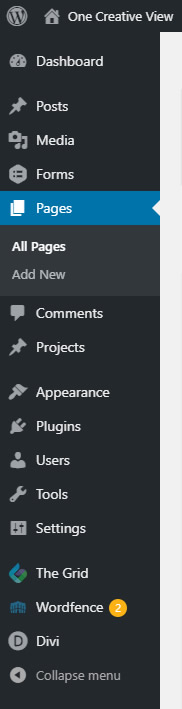
The most important is the toolbar you’ll see on the left panel. The toolbar allows you to manage your Pages, Posts, and Media.
For basic website maintenance you will primarily be using Posts, Media, and Pages from this Dashboard.
Posts: Add/modify Blogs posts for the Blog page.
Media: Add/delete images and PDFs.
Pages: All the main pages of the website.
- Home – Main page
- Services – Four services sections
- About Eileen – Bio information
- Appreciation – Testimonial page
- Contact – Contact form and info
In addition to the standard WordPress features we used the following premium WordPress plugins for your website:
– Image IntenseImage hover captions
Yoast SEO – Search engine optimization
Wordfence – Malware prevention and site security
3. Divi Theme:
Your website was created using the WordPress theme Divi. You can use the Divi Classic Builder which we used or the new Divi Visual Builder to create pages and posts. It is highly recommended that you familiarize yourself with Divi before customizing your website.
Divi is constantly evolving with new features and updates, so we refer you to their official documentation:
For an in-depth overview on Divi:
https://www.elegantthemes.com/gallery/divi/
For Divi Theme documentation and tutorials:
https://www.elegantthemes.com/documentation/divi/
To edit a Divi page or post, in the Edit page you will work with the following:
Sections (blue), Rows (green), and Modules (black columns)
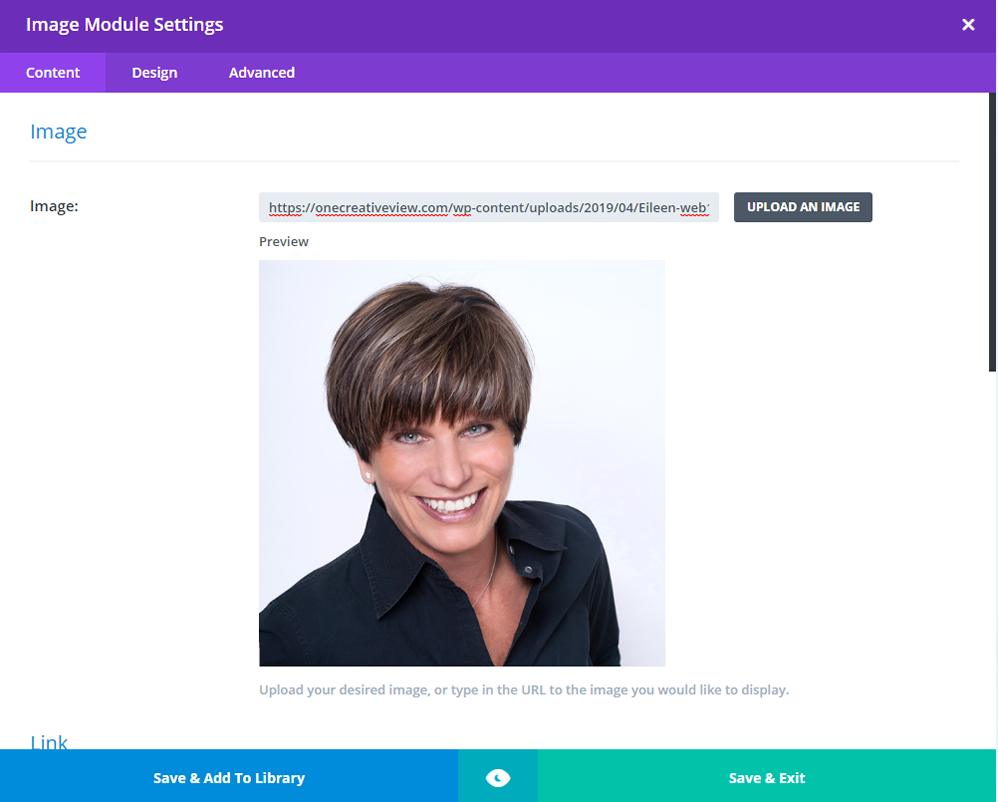
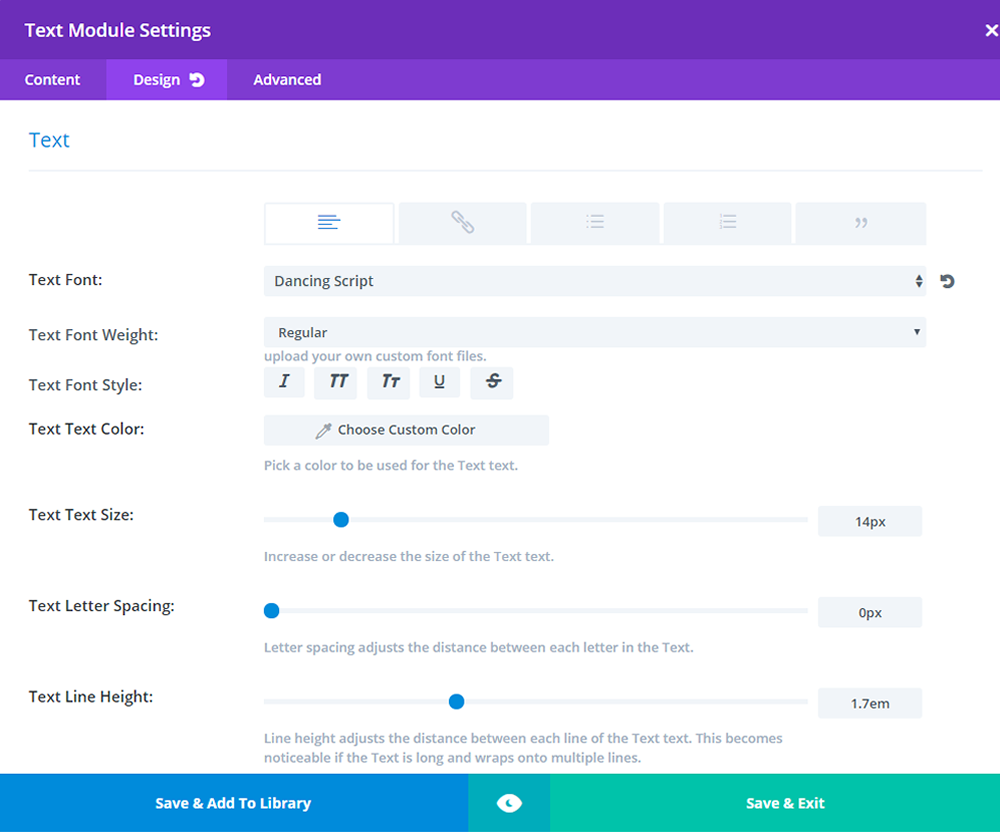
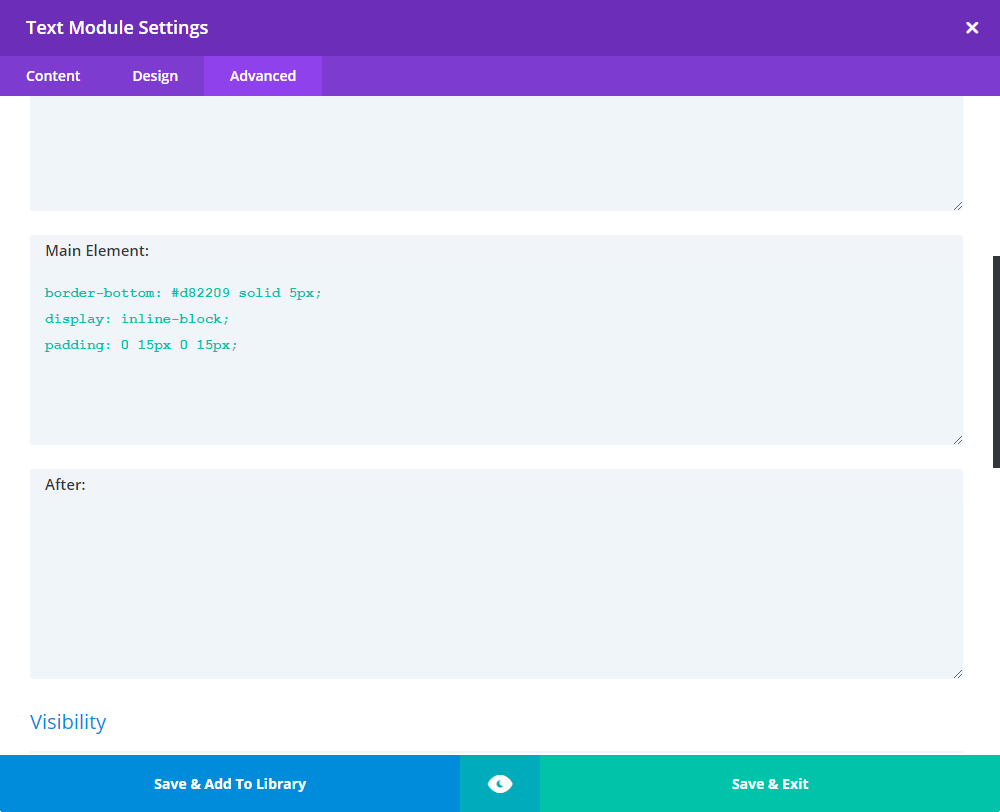
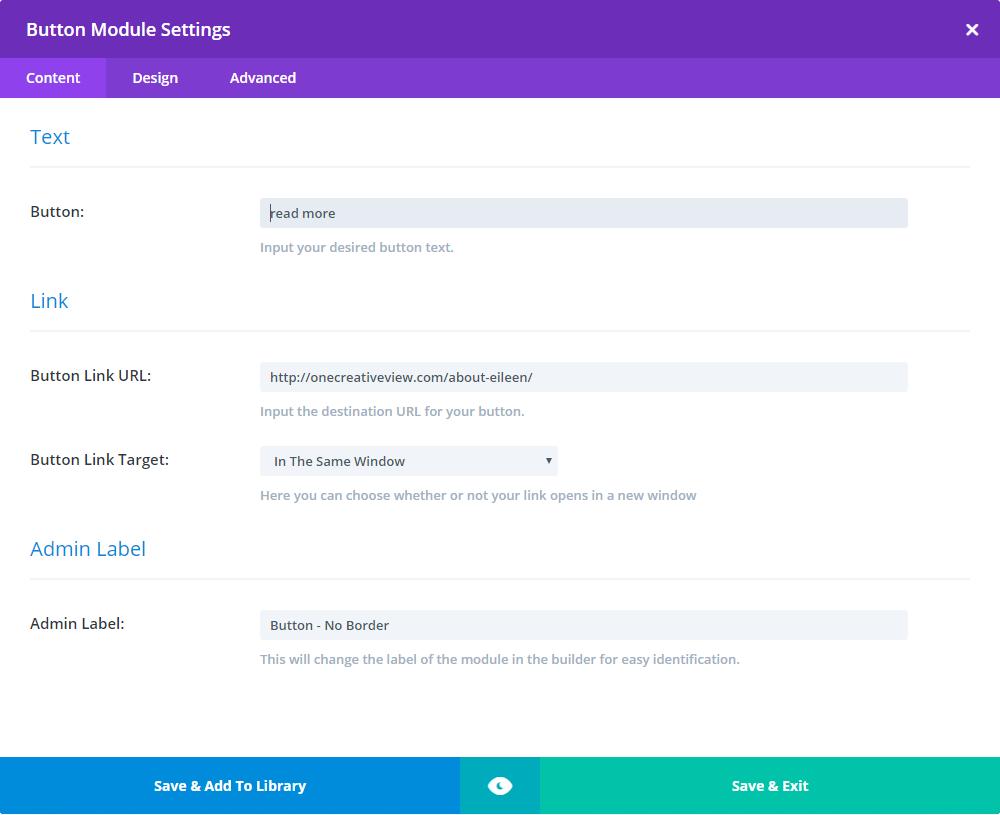
For this website you will work with primarily Text, Image, and Button modules as shown below.
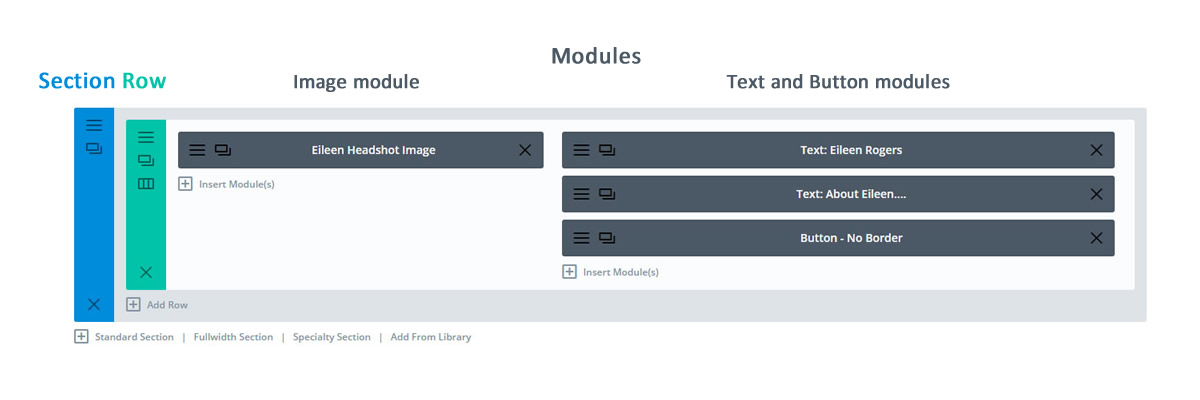
To modify section, row, or module settings or content click on the modify icon for each: 
4. Home Page:
From the main Dashboard click on Pages, All Pages and you will see this screen:
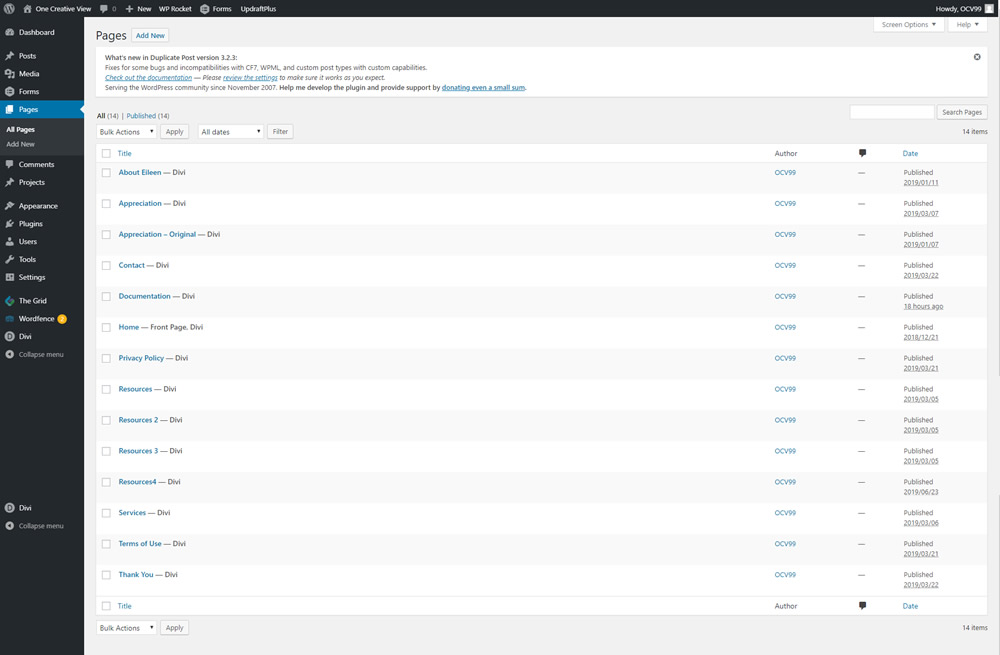
Click on Home, Edit and you will be in the Edit Page area for the Home page.
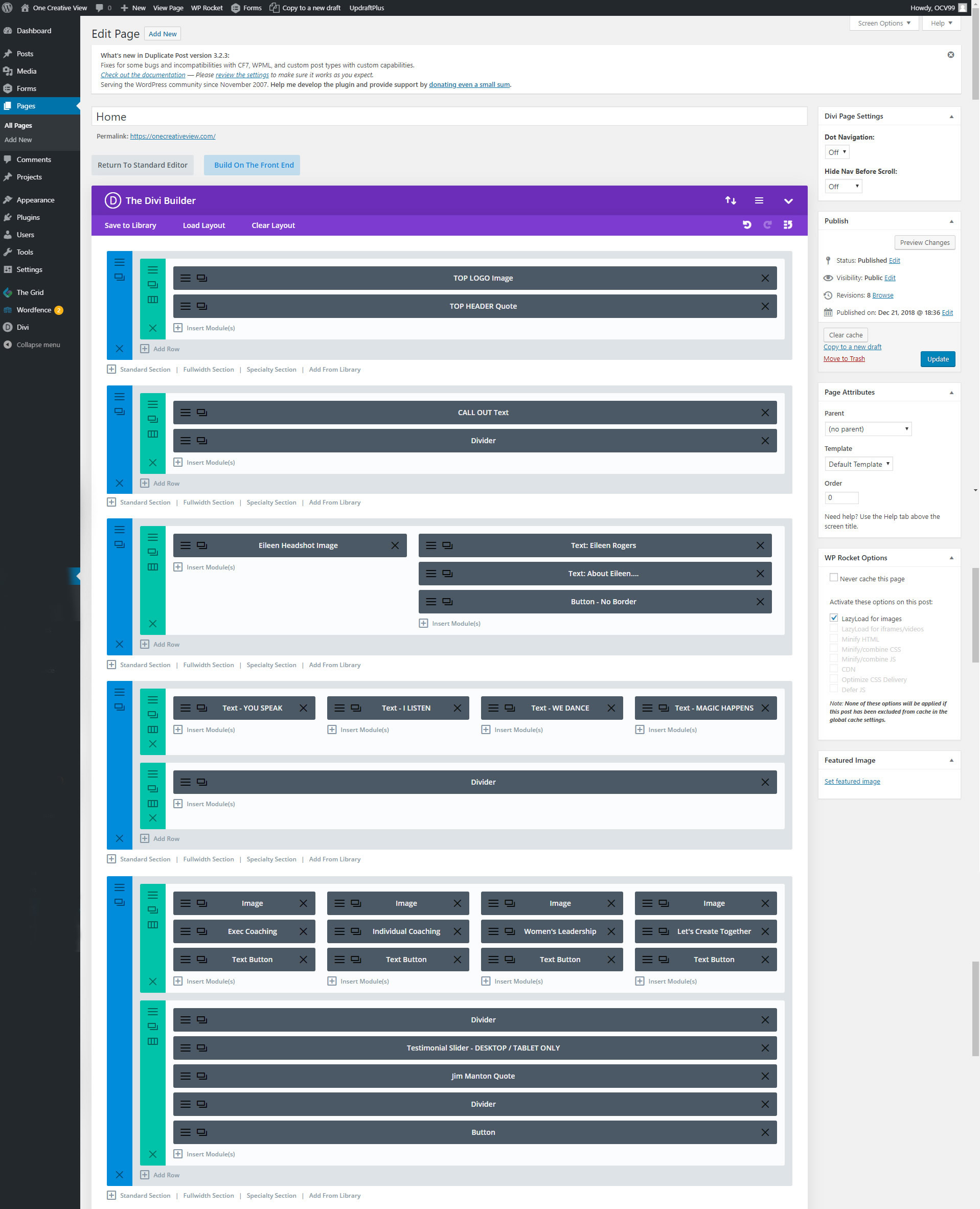
As an example, view the third section down the page as illustrated below. You will see an Image module in the left column and Text and Button modules in the right column.
To modify section, row, or module settings or content click on the modify icon for each:
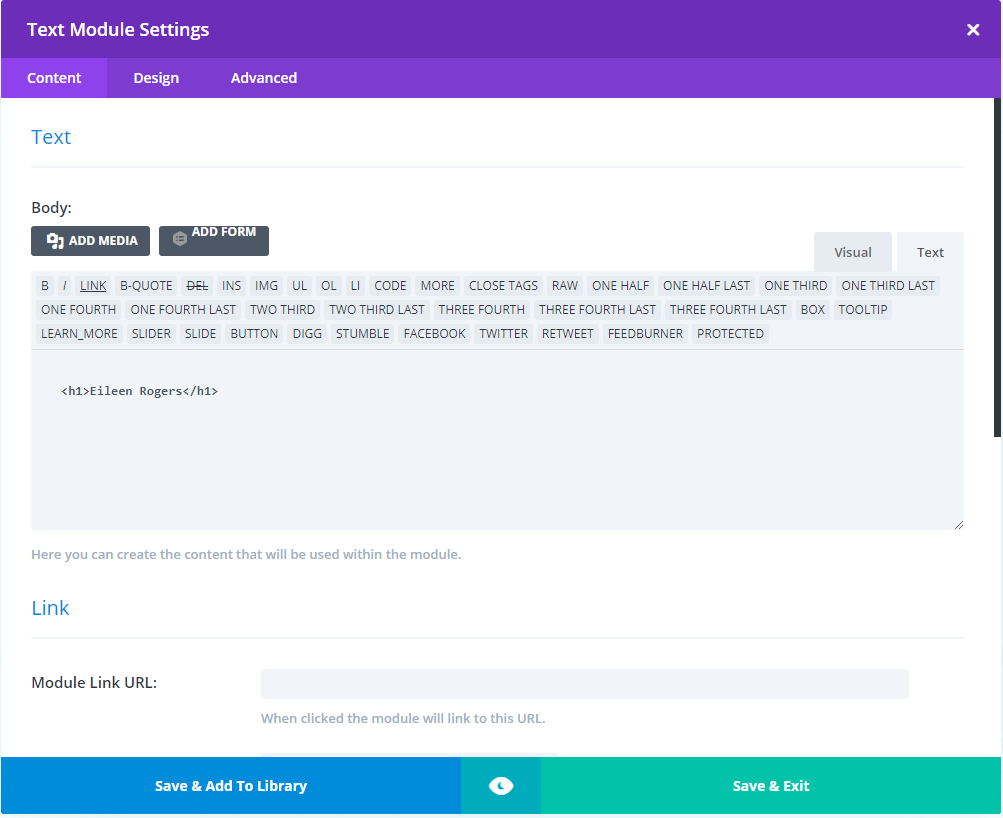
5. Services Page:
From the main Dashboard click on Pages, All Pages. Hover over Services and click Edit:
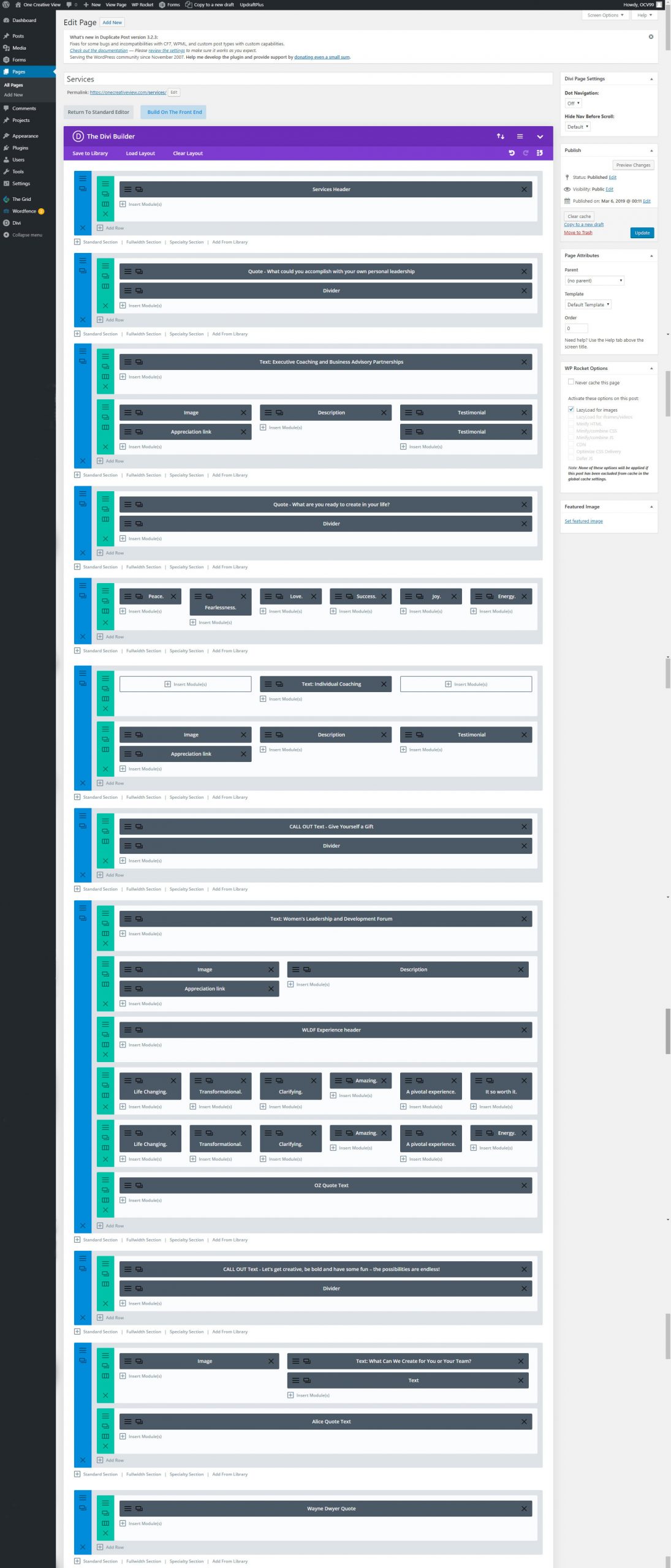
You will be in the Edit Page area for the Services page. Please review the Home section above for detailed instructions on how to modify or add text and image content in Divi modules.
6. About Page
From the main Dashboard click on Pages, All Pages. Hover over About and click Edit:
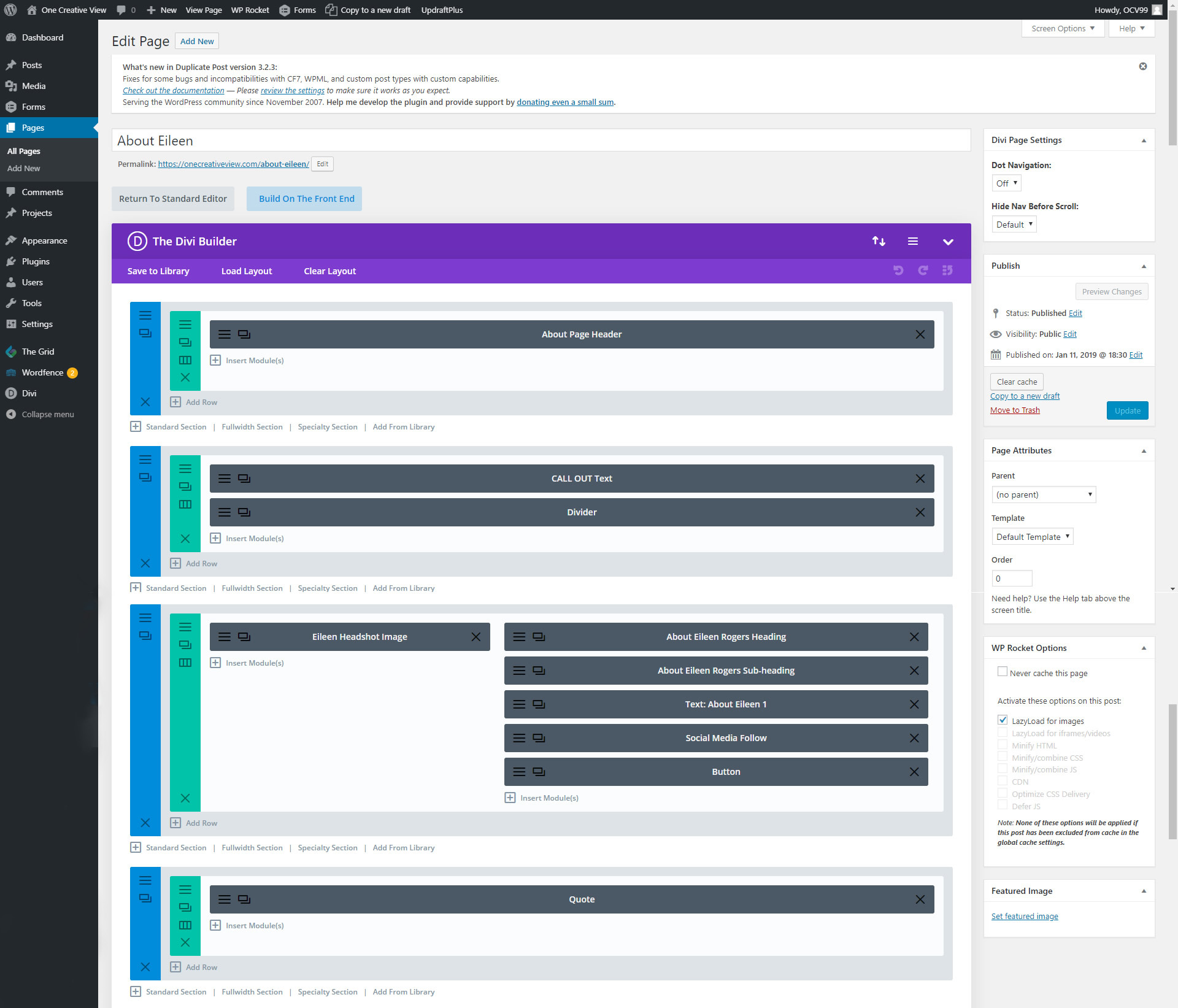
You will be in the Edit Page area for the About page. Please review the Home section above for detailed instructions on how to modify or add text and image content in Divi modules.
7. Appreciation Page
From the main Dashboard click on Pages, All Pages. Hover over Appreciation and click Edit:
You will be in the Edit Page area for the Appreciation page. Please review the Home section above for detailed instructions on how to modify or add text and image content in Divi modules.
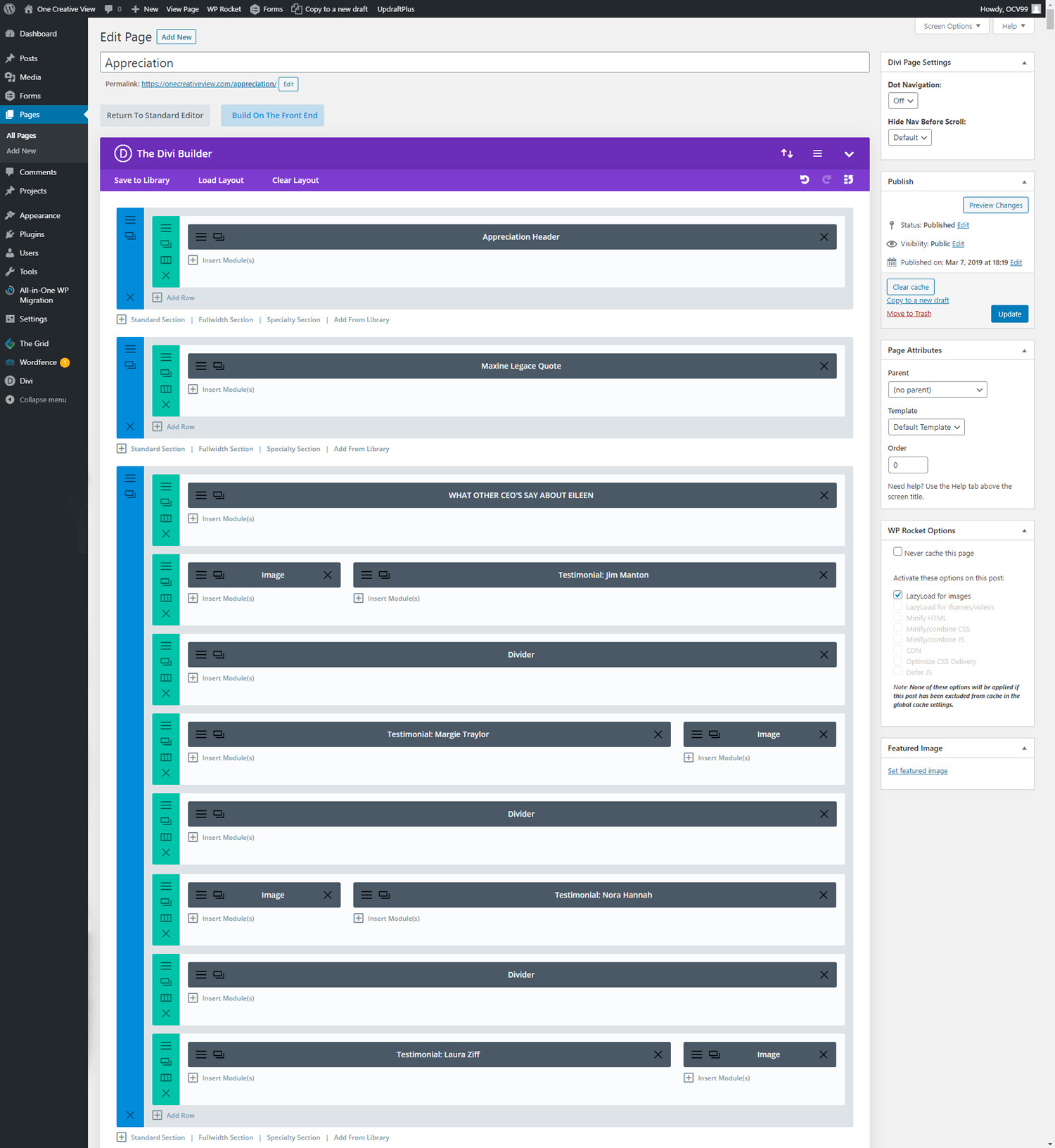
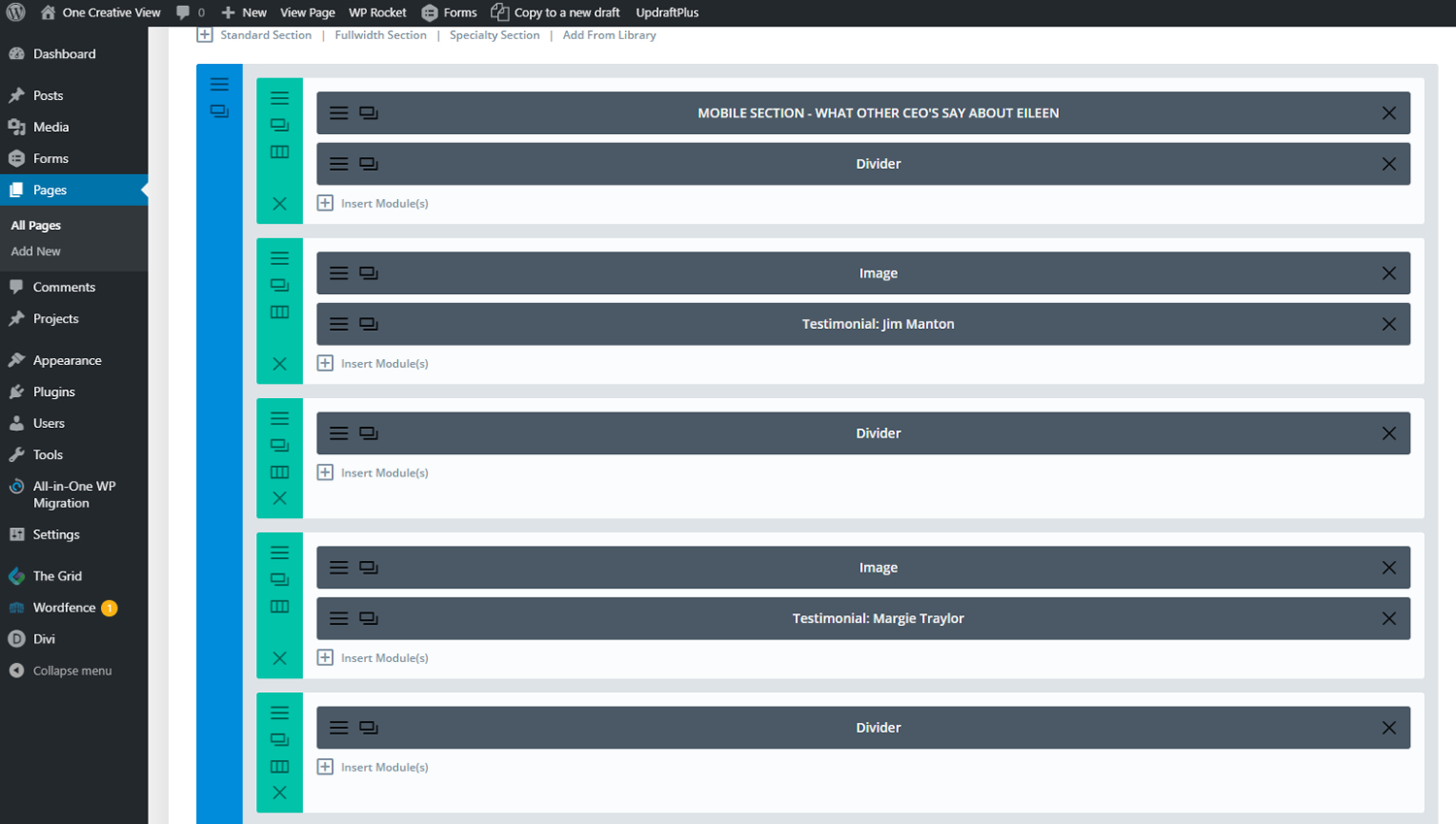
On the Appreciation page there is a separate section for mobile display below the desktop one. The module begins with this section: